 By peter_lzh
 You give an AI a long task, switch to your browser to procrastinate, then tab back every 30 seconds to check — back and forth, more exhausting than actually writing code.
Let’s be honest: AI coding has made us significantly faster. But watching for progress? That’s even more agonizing than staring at a compilation bar.
Until I stumbled across this crab on GitHub — it turns Claude Code’s invisible work states into a pixel desktop pet sitting right on your screen. Finally, the AI in your terminal has jumped onto your desktop.
Clawd on Desk is an open-source pixel-art desktop pet built with Electron, supporting Windows 11, macOS, and Linux. But it’s far more than just cute — its core ability is to visualize your AI coding assistant’s real-time status, so you never have to stare at a terminal again.
When Claude Code, Cursor, Codex, and other tools are hard at work in the terminal, Clawd shows what they’re doing through different animations. The project was started by developer Ruller in March 2025, has already earned 4,254 stars, and is featured in the Awesome Claude Code collection.
12 Animations That Make Terminal Pets Look Primitive
Clawd’s animations cover the entire AI coding workflow:
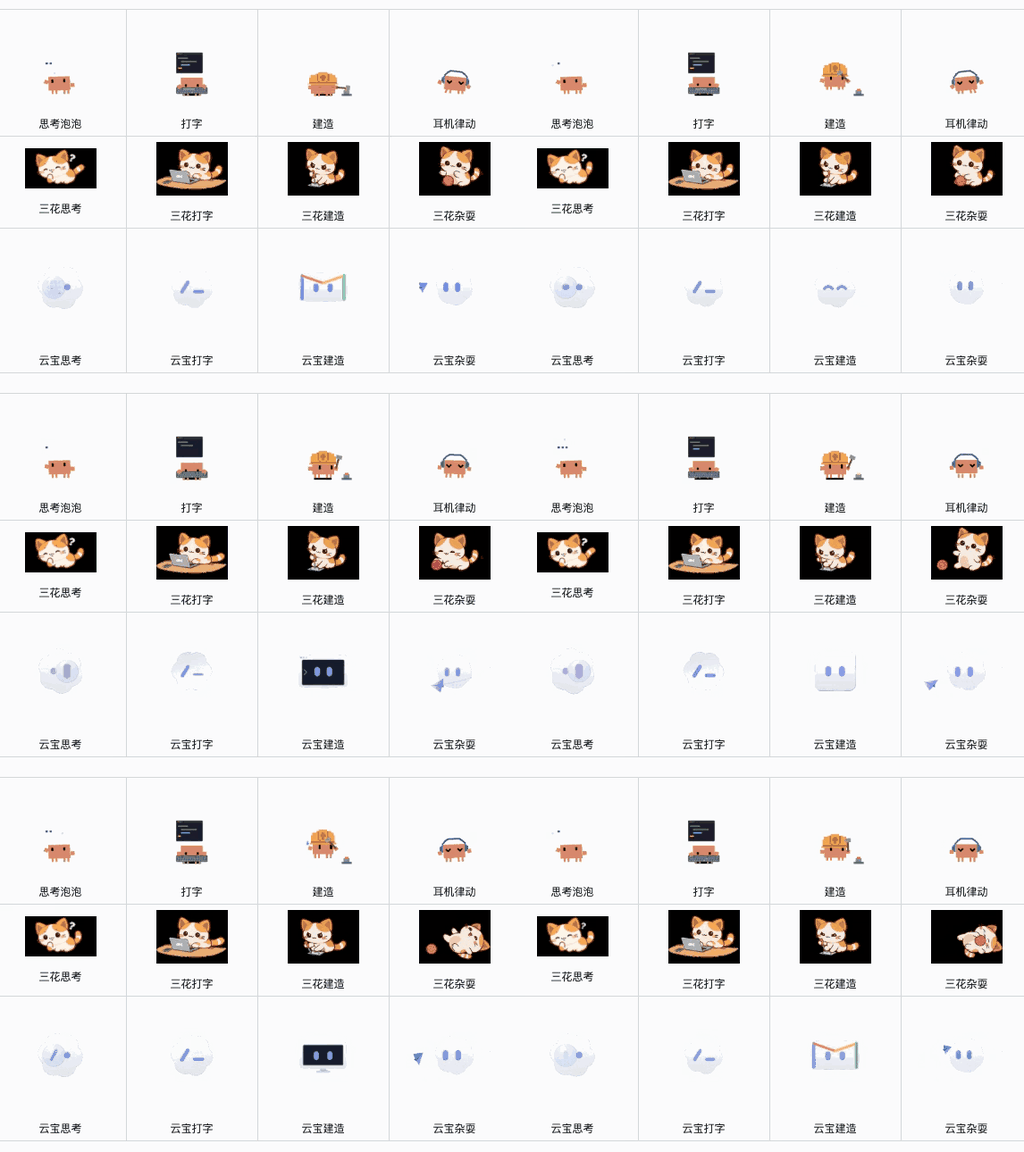
When an Agent starts, Clawd enters thinking mode — resting its chin on its claw, blowing thought bubbles, signaling that the AI is reasoning. As the AI begins outputting code, it switches to typing mode, little claws tapping away at a keyboard. When running build commands, it transforms into a construction animation, banging and hammering away.
The sub-agent animations are the best part. Launch one sub-agent and Clawd juggles a single ball with one claw. Multiple sub-agents running in parallel? It becomes a two-claw juggling act with three balls — one glance and you know, “Oh, the AI is splitting up the work.”
Task complete? Happy bounce. Error? Panic puff — its fur bristles. Permission request? Claw raise. When idle for more than 60 seconds, it yawns, dozes off, and eventually lies down and falls asleep — a mouse jolt snaps it right back up. There’s also sweeping floors, carrying boxes… 12 distinct animations covering every daily state.
Permission Bubbles: The Real Productivity Hack
If Clawd were just cute animations, it’d be a nice toy at best. But it has a genuinely productivity-boosting feature: permission approval bubbles.
Anyone who has used Claude Code knows the struggle — it constantly pops permission requests: “Allow executing this command?” — and you have to tab back to the terminal to press y/n. Back and forth, your flow state shattered.
Clawd’s approach? Permission requests appear directly on your desktop as bubble cards, showing the request content and three buttons — Allow, Deny, and Always. One click, no window switching needed.
Even better: global keyboard shortcuts. Ctrl+Shift+Y to allow, Ctrl+Shift+N to deny. Never leave your keyboard. The design philosophy is clever — turning the disruptive terminal interaction into a lightweight desktop-layer operation. When multiple requests arrive simultaneously, the bubbles stack up from the bottom-right corner. If you answer in the terminal first, the desktop bubble auto-dismisses — no conflict between the two.
14+ AI Tools Supported, Not Just Claude Code
Beyond deep Claude Code integration, Clawd also supports Codex CLI, Cursor Agent, CodeBuddy, Gemini CLI, Copilot CLI, Qwen Code, Kimi CLI, opencode, and 14+ other tools.
Claude Code and Codex CLI register hooks automatically — install and go. For other agents, a single click in the settings panel installs everything, no manual configuration needed. If Clawd isn’t running, hooks silently skip themselves without affecting your AI tools.
Multi-Session and Remote SSH — Thoughtful Touches Everywhere
Multi-session management: Run multiple agents simultaneously. Clawd independently tracks each session with a HUD overlay panel listing all active states. Click any entry to jump directly to the corresponding terminal. When an agent process crashes or exits, Clawd cleans up automatically — no zombie sessions lingering around.
Remote SSH support: Running Claude Code on a server? A one-command script deploys Clawd remotely, with SSH reverse port forwarding sending status back to your local machine. Permission bubbles even tunnel through the SSH connection and pop up normally on your local desktop.
Mini mode: Drag it to the screen edge and it auto-shrinks and hides. Hover your mouse over it and it peeks out; move away and it tucks back in — zero screen space wasted, one glance at the status.
Eye tracking: When idle, its eyes follow your mouse cursor, body tilting slightly, shadow stretching — it genuinely feels alive.
Three Themes: Crab, Cat, and Cloud
Three built-in themes: the pixel crab Clawd (default), Calico the calico cat, and Cloudling the cloud sprite. You can also customize and import Codex Pet animation packs.
Installation: One Command on Windows
Windows (one command):
# One-line install command available on GitHubmacOS download the .dmg, Linux use .AppImage or .deb. Running from source is equally simple: git clone → npm install → npm start. Once installed, it auto-detects your AI tools and registers hooks. Then just code as normal — the crab’s got your back.
More Than a Pet — a Visual Signal for AI’s Invisible Work
Clawd on Desk reminds me of the old QQ pets and Rising antivirus lion mascot. But unlike them, it solves a real pain point: bringing AI’s work state out of the invisible terminal and turning it into a visual signal you can perceive at any moment.
Open source under the AGPL-3.0 license, maintained by 57 community contributors with active updates. There’s even a companion PWA that lets you check your agent status from your phone in real time. If you use AI to write code every day, this is a must-install — you’ll wonder why you ever kept switching back to the terminal.
Open source repo: github.com/rullerzhou-afk/clawd-on-desk
If you found this useful, give the author a Star ⭐ on GitHub, and share it with fellow AI coders!