 By peter_lzh
 If you use OpenAI’s Codex agent for coding and design work, you have probably wished for a proper visual scratchpad — a place to sketch ideas, drop in reference images, and let the AI generate or revise pictures right where you are working. Cowart is an open-source plugin that brings exactly that: a native, infinite canvas widget built directly into Codex.
What is Cowart?
Cowart is a native infinite-canvas widget plugin for Codex. Built on tldraw, it provides a visual canvas for brainstorming, annotating, generating images, and iterating on those images from your annotations. The canvas is opened directly by an MCP widget, and by default your data is saved to a canvas/ directory inside your current project — not buried inside the plugin’s own repository.
Key features
- Opens a native tldraw infinite-canvas widget inside Codex — no more launching a web browser or in-app browser to view a local page.
- Persists canvas pages and image assets in your current project directory.
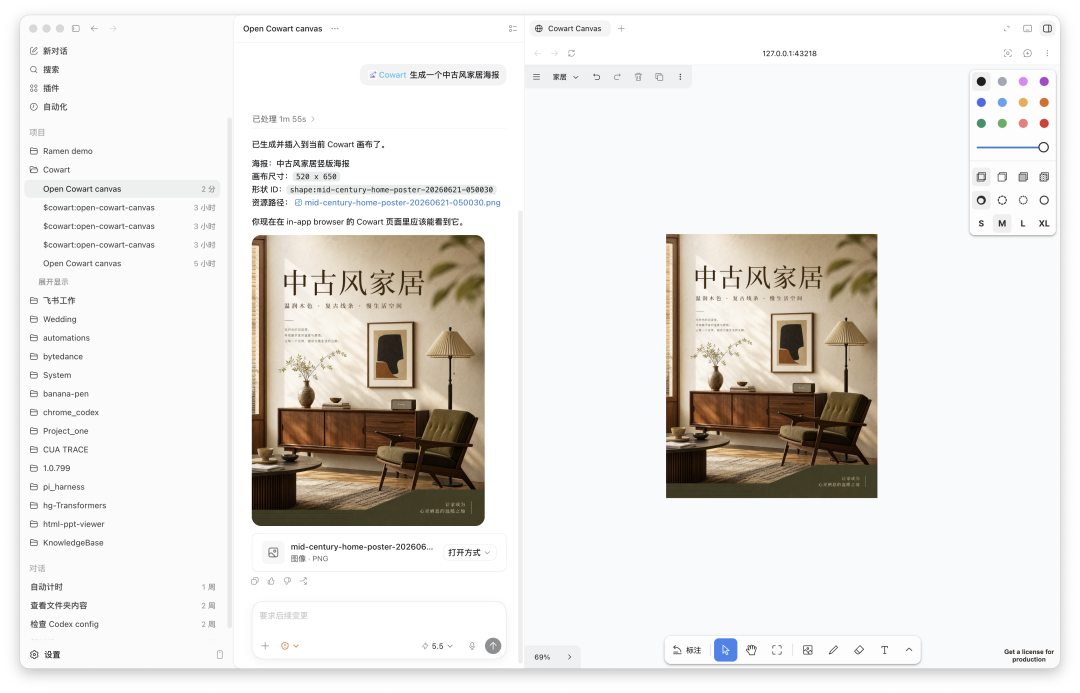
- Lets you create an AI image frame on the canvas, type a prompt, pick reference images, and have Codex generate an image that matches the selected frame’s position and aspect ratio, then swap it in.
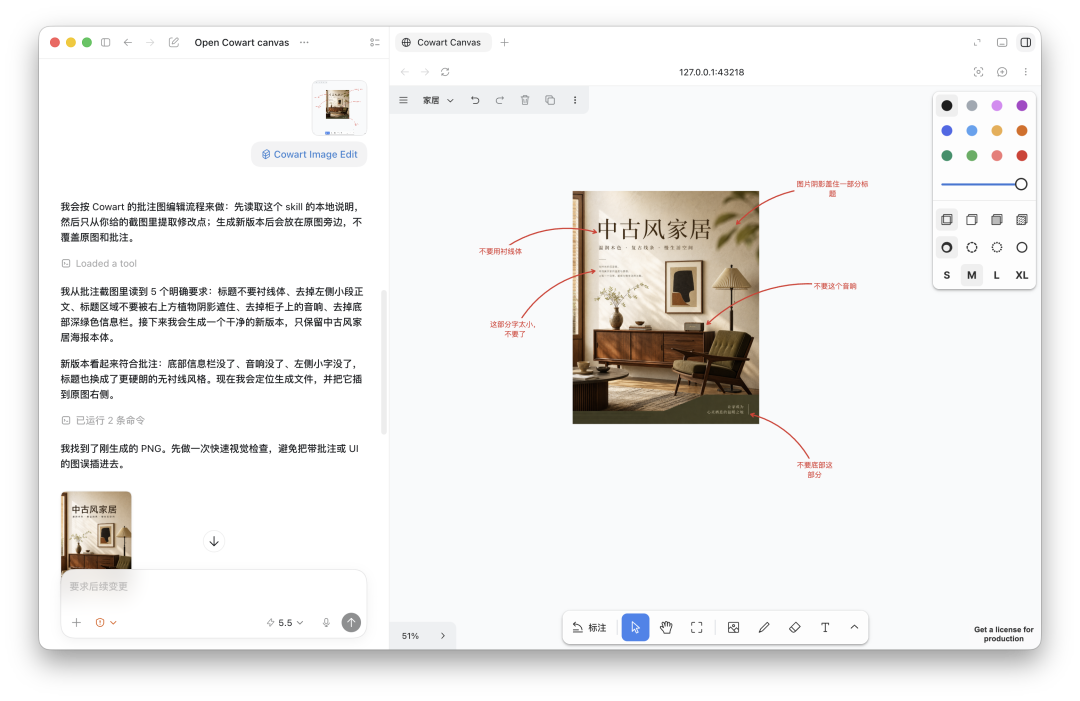
- After you mark up an image, you can submit the annotated screenshot straight from the canvas and let Codex generate a clean new image based on your notes, placed right next to the original.
- Exposes Cowart MCP tools to read the selection state, save the canvas, insert images, and store them in the page’s local asset directory.
Installation
Let Codex install it for you
Send the following message to Codex:
Install the Cowart Codex plugin from https://github.com/zhongerxin/cowart.git. Clone the repo to ~/plugins/cowart, confirm that .codex-plugin/plugin.json exists, add the plugin to the personal marketplace, run `codex plugin marketplace add ~` first, then run `codex plugin add cowart@personal`. After installing, verify the plugin and tell me whether I need to start a new conversation to load the new skills and MCP tools.Manual installation
It is recommended to clone the plugin to the location that the Codex personal marketplace references by default:
mkdir -p ~/plugins
git clone https://github.com/zhongerxin/cowart.git ~/plugins/cowart
cd ~/plugins/cowart
npm install
npm run build
Make sure your ~/.agents/plugins/marketplace.json contains a Cowart entry:
{
  "name": "personal",
  "interface": { "displayName": "Personal" },
  "plugins": [
    {
      "name": "cowart",
      "source": { "source": "local", "path": "./plugins/cowart" },
      "policy": { "installation": "AVAILABLE", "authentication": "ON_INSTALL" },
      "category": "Productivity"
    }
  ]
}
Then register the personal marketplace and install the plugin:
codex plugin marketplace add ~
codex plugin add cowart@personal
Once installed, start a fresh Codex conversation so the new skill and MCP tools load completely.
Usage
Open the canvas
In Codex, just say:
Open the Cowart canvas for this project.Cowart opens a native Codex widget via render_cowart_canvas_widget — you no longer need to spin up a local web server or manually open an in-app browser. The scripts/start-canvas.sh script is kept only as a local-development fallback.
Canvas data is saved under your current project directory:
canvas/pages/<page-id>/cowart-canvas.json
canvas/pages/<page-id>/assets/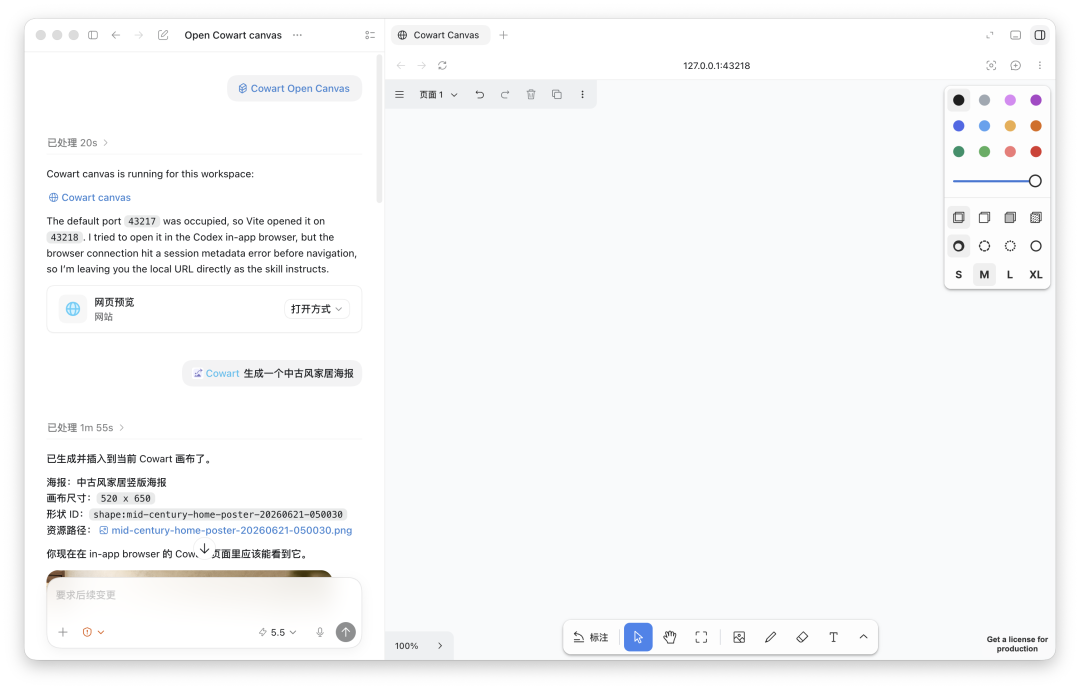
Generate a new image
- Open the Cowart canvas.
- Create and select an AI image frame on the canvas.
- In the generation panel that pops up, enter a prompt, optionally pick one or more reference images, and hit send.
Cowart sends the prompt, the reference images, and the dimensions of the selected AI image frame to Codex. Codex generates an image at that frame’s position and aspect ratio, then replaces the AI image frame with a regular image shape.
Revise an image from your annotations
- Annotate an image on the Cowart canvas.
- Select the annotated image and click Edit from annotations.
- Cowart exports a screenshot containing the original image, arrows, and annotation text, and sends it to Codex through the widget bridge.
Codex reads the annotations and arrows in the screenshot, generates a clean new image with the markup removed, and places the result next to the original. The original image and its annotations are never deleted or moved. You can also hand a Cowart annotation screenshot to Codex manually to trigger the same revision flow.
Skills
cowart:cowart-open-canvas— opens the native Cowart canvas widget.cowart:cowart-image-gen— takes an in-canvas prompt and reference images and replaces the selected AI image frame with a generated image; if no frame is selected, it can insert the generated image into the current page.cowart:cowart-image-edit— generates a revised image from a canvas submission or a user-supplied Cowart annotation screenshot.
Local development
For local development you can still start the Vite canvas server directly and point it at a user project directory:
npm install
npm run dev
npm run build

./scripts/start-canvas.sh /path/to/user/project
Common environment variables:
COWART_PORT— the local server port, default43217.COWART_PROJECT_DIR— the user project directory the canvas data belongs to.COWART_CANVAS_DIR— the canvas data directory, default$COWART_PROJECT_DIR/canvas.
Project link
Cowart is open source and available on GitHub: github.com/zhongerxin/Cowart. If you live inside Codex and keep wishing for a visual layer to sketch, generate, and refine images without leaving your agent, it is well worth a look.