 By peter_lzh
 Immersive Translate: The Bilingual Translator 20 Million People Use for Web, Video, and PDF
If you have ever tried to read English open-source docs with your browser’s built-in translator, you know the pain: it replaces the whole page, the original text vanishes, and the moment you want to check a technical term you have to turn translation off and reload. Immersive Translate was built to fix exactly that — and it has grown into one of the most popular translation tools in the world, with over 20 million users.
What is Immersive Translate?
Immersive Translate is an AI-powered bilingual, side-by-side translation tool. It is not the kind of translator that opens a separate window and makes you copy-paste back and forth. Instead, it embeds translation directly into the places you actually use it: web pages, PDFs, videos, and input boxes.

It supports more than 100 languages and over 20 built-in translation engines, including Microsoft Translator, Google Translate, DeepL, OpenAI, and DeepSeek. It runs on Chrome, Edge, Firefox, and Safari. It has already won Chrome’s Featured Extension of 2024, and — crucially — its core features are completely free.
Core features
1. Bilingual web translation: keep the original, read side by side
This is the flagship feature. Install the extension, open any English page, click the floating ball on the right (or right-click and choose “Translate to Chinese”), and the whole page switches to bilingual mode — the original English stays, with the translation placed right beneath each paragraph.
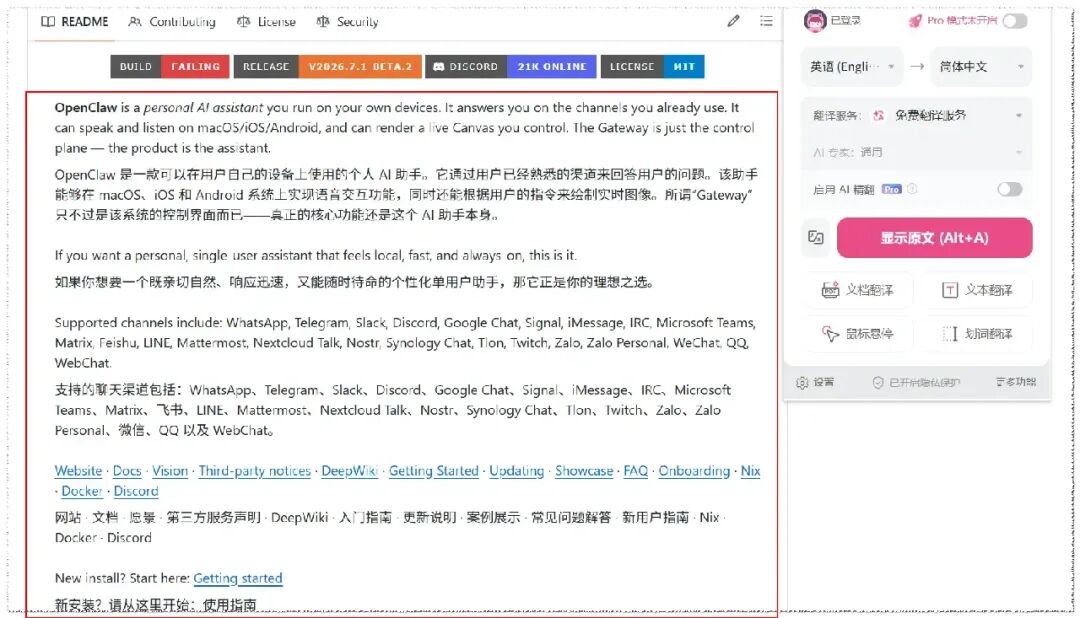
When a translation looks off, one glance up gives you the source — no more toggling pages to double-check. You can also hover over any paragraph to pop up its translation on demand, or select a phrase to translate just that snippet (with read-aloud and copy support). The trigger method (hover, hold, Ctrl, etc.) is fully customizable in the settings.
2. BabelFast: instant full-page translation
BabelFast is a newer mode with one goal: speed. If you have ever read a long Hacker News or Reddit thread, you know the frustration of watching translations crawl down the page paragraph by paragraph. Instead of requesting and filling in one segment at a time, BabelFast packages the whole page, splits it into segments, and translates them in parallel — so the entire page fills in almost at once.
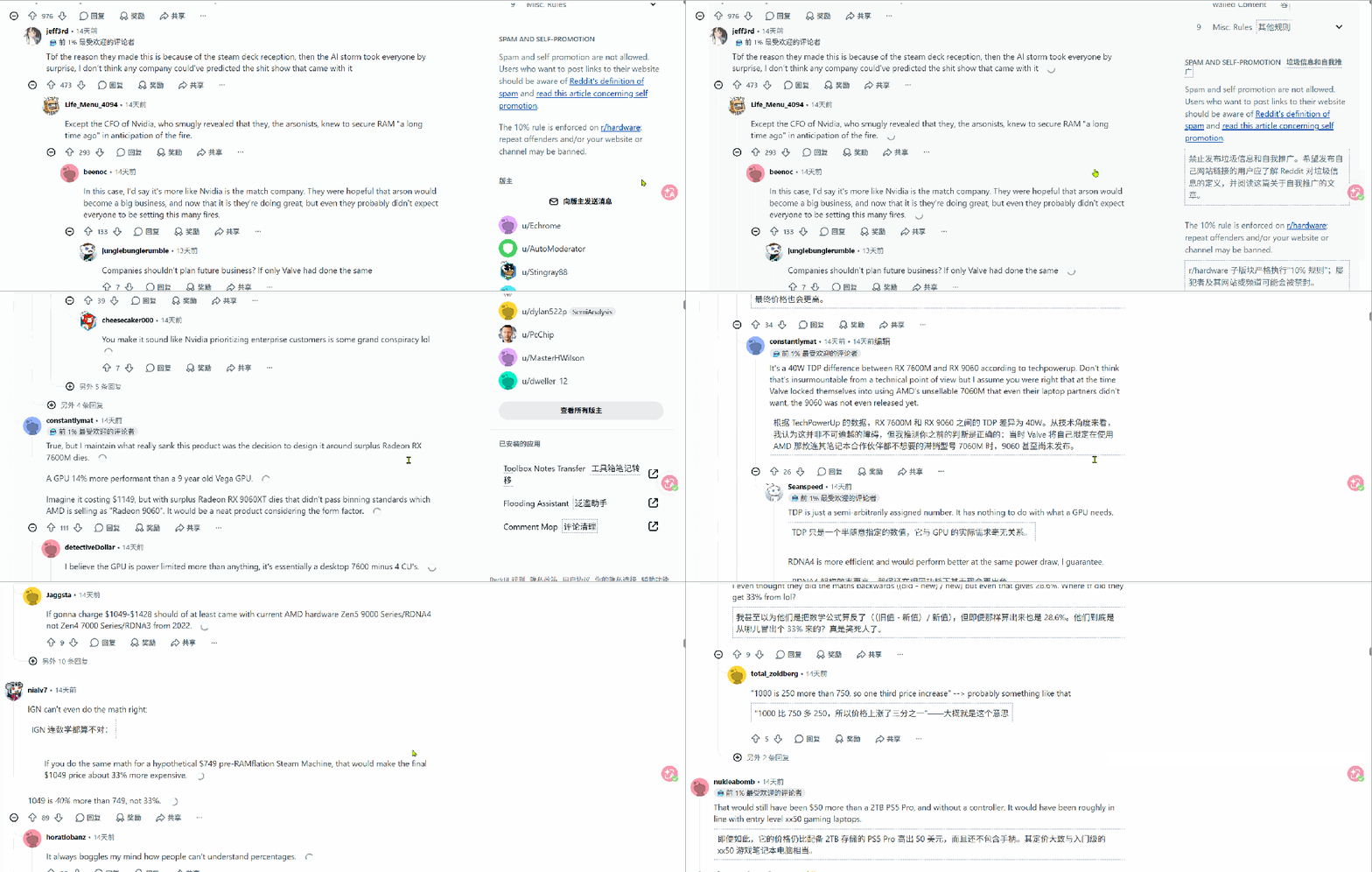
To use it, just switch the translation service to BabelFast in the settings.
3. Bilingual video subtitles: watch untranslated video with ease
For foreign-language videos on YouTube, TED, or Bilibili that have no subtitles — or only foreign ones — the extension can add bilingual subtitles with one click, showing the original and the translation in sync.
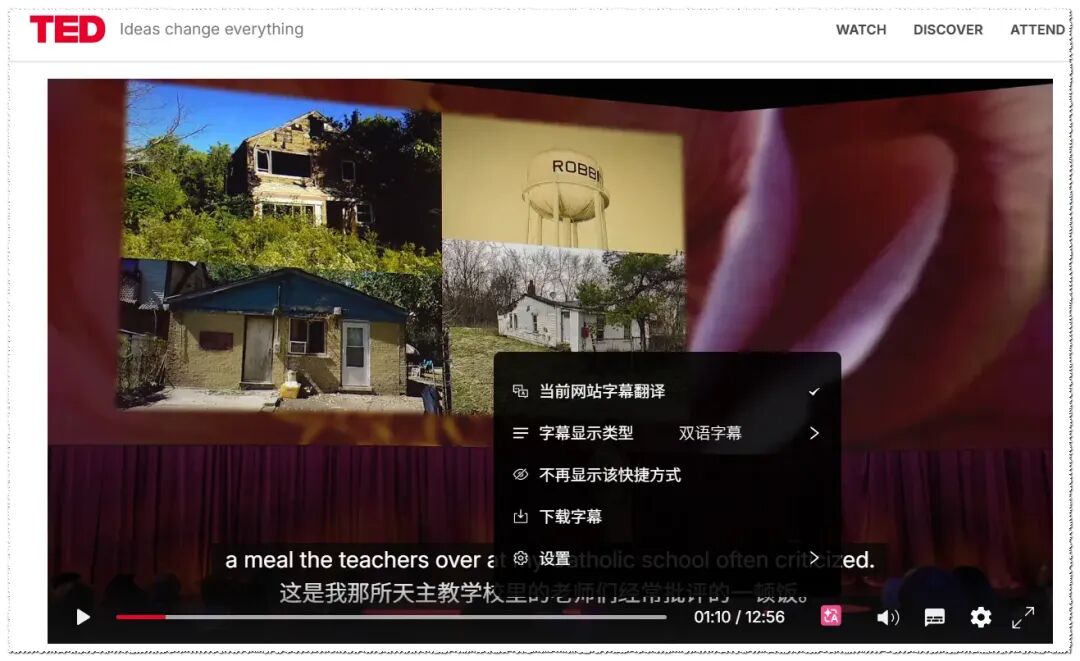
Even better, its AI subtitle feature uses speech recognition to auto-generate subtitles for videos that have none, then translates them. You can also export subtitles as SRT files for note-taking or editing reference.
4. Document translation with BabelDOC: PDFs that keep their layout
PDF translation is the weak spot of most tools — papers, contracts, and technical white papers mix multi-column layouts, tables, formulas, and footnotes, and ordinary translators turn them into mush. BabelDOC, a newer feature, tackles the two hardest problems: layout preservation and terminology consistency.
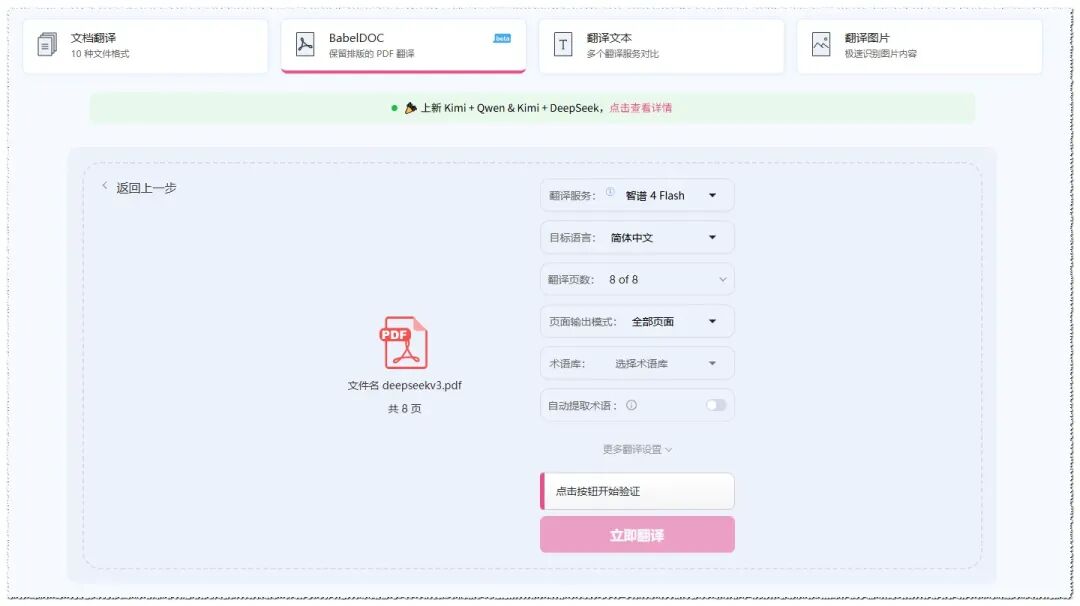
Drop in a two-column English paper with math, tables, and footnotes, and BabelDOC parses the structure and re-renders it into a bilingual or translation-only PDF that keeps the original layout. You can download the result in bilingual or translation-only form, and the free tier’s monthly quota is generous enough for everyday reading.
5. Comic translation: read the latest chapters without waiting for scanlations
A lesser-known feature: Immersive Translate can translate comics on certain sites — Japanese, Korean, and Western comics alike. Click the side “M” button and the text in the speech bubbles is recognized and replaced, with vertical text adapted so it doesn’t overflow the bubbles.

It isn’t 100% perfect, but it is more than enough to follow the story — days before an official translation lands. You can also right-click any web image and choose “Translate this image” to overlay translated text back onto UI screenshots or chart labels.
6. Other handy features
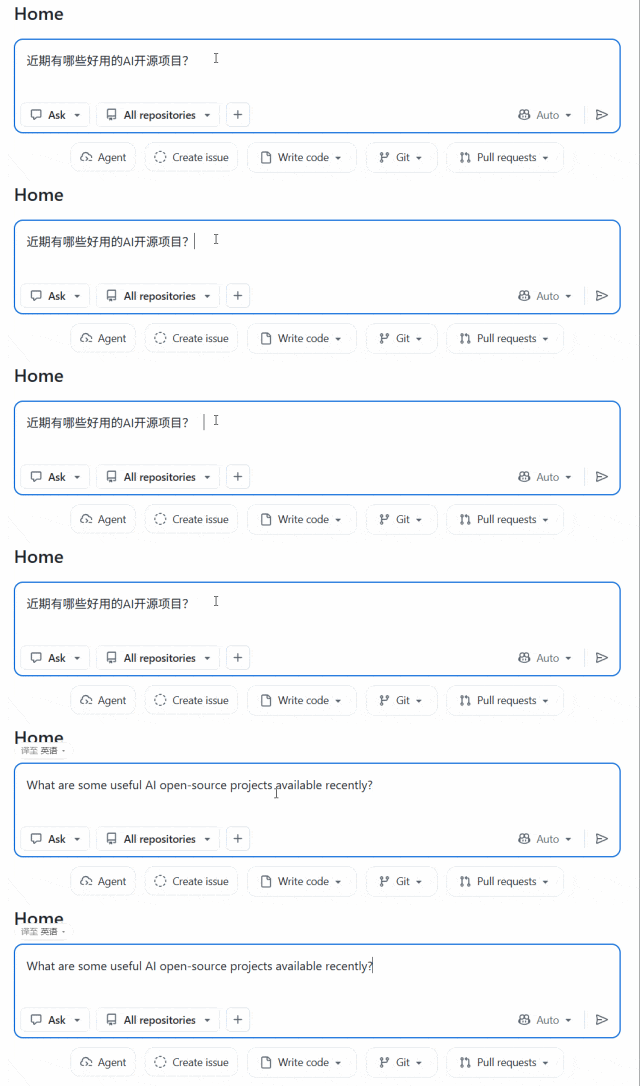
- Input-box translation: type Chinese in any web input box and press the spacebar three times to auto-convert it to English — perfect for writing GitHub Issues or replying to overseas customers.
- EPUB e-book translation: upload an EPUB and export a bilingual version, ideal for reading original foreign books side by side.
- AI experts & glossaries: professionals can enable AI expert mode for domain-appropriate translations, and define custom glossaries to keep specialized terms consistent.
Download and install
Immersive Translate runs on nearly every platform and installs in a couple of clicks. Grab it from the official download page and follow the prompts: immersivetranslate.com/en/download.
Final thoughts
After using Immersive Translate for a while, the biggest change isn’t “how accurate it is” — it’s that reading becomes continuous again. You don’t stop dead on a single word, so your reading rhythm holds. When something really matters, a glance at the original confirms your understanding.
What makes it valuable is that it weaves translation into every scenario: bilingual web pages, in-player subtitles, native-to-English input, layout-preserving PDFs. If you regularly read English pages, watch overseas videos, work through PDFs, or write English emails, it is well worth installing — and the free tier already covers most everyday needs.