By peter_lzh
 If you’ve ever asked an AI Agent to write a PowerPoint, you know that awkward feeling: it writes, but you can’t see what it wrote.
For years, developers and AI Agents have relied on the same Python libraries — python-pptx, python-docx, openpyxl — for document automation. These libraries can read and write structures well enough, but rendering is an entirely different game. Want a preview? You’ll need to install LibreOffice, or call Microsoft’s Graph API. The Agent runs perfectly on the server, but hits a wall the moment rendering is required.
This creates an awkward situation: Agents can “write” documents, but they can’t “see” them. They have no way to quality-check their own output — delivery quality is pure luck.
That is, until OfficeCLI showed up and changed the game entirely.
Project Overview
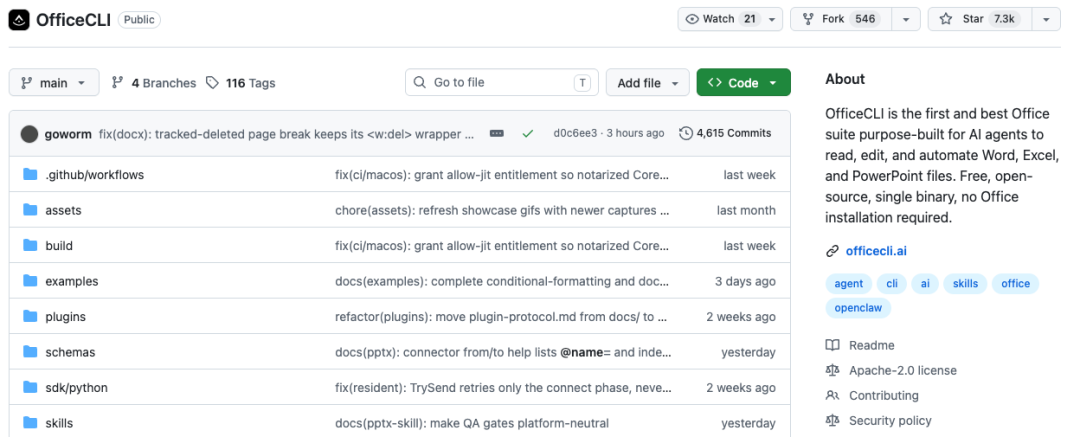
OfficeCLI is a command-line tool for Office documents built specifically for AI Agents. It supports creating, reading, analyzing, and modifying .docx, .xlsx, and .pptx files.
It ships as a single binary distribution — no need for Microsoft Office installed locally, and no Python environment required.
Core Value in Two Layers
OfficeCLI’s value proposition is built on two levels — and the second one is the real game-changer.
Layer 1: Turning Office Documents into Structured Objects for Agents
Whether it’s slides, shapes, tables, charts, animations, or 3D models in PPT; paragraphs, styles, tables, formulas, footnotes, or revision tracking in Word; or cells, formulas, pivot tables, and conditional formatting in Excel — OfficeCLI can directly locate and manipulate them all via command-line paths.
For example, to add a text box to the first slide:
officecli add deck.pptx '/slide[1]' --type shape \
  --prop text="Revenue grew 25%" \
  --prop x=2cm --prop y=5cm \
  --prop font=Arial --prop size=24 --prop color=FFFFFF
Compare this to the Python approach (import, Inches, Pt, slide_layouts… at least 10 lines to start), and the difference is clear.
Layer 2 (The Crucial One): Built-in Rendering
OfficeCLI can render Word, Excel, and PowerPoint documents into HTML or PNG — without any external dependencies.
This means the Agent can actually see the document right after writing it. It can feed the rendered PNG to a multimodal model, or read the HTML structure directly to check whether the layout looks right.
OfficeCLI provides a complete generate → preview → modify feedback loop.
Its rendering engine was written from scratch, covering shapes, charts (trend lines, error bars, waterfall, candlestick, sparklines), formulas (OMML to MathJax), 3D .glb models (via Three.js), morph transitions, slide zoom, and various shape effects. Packing all of this into a single binary is honestly impressive.
Three-Tier Architecture
OfficeCLI designs three operational layers for Agents, recommending that users always start from the top level and drill down only when needed:
- L1 — Semantic View:
create/view/get/query/validate— read outlines, statistics, inspect issues, and extract structured JSON. Agents can handle 80% of daily tasks using this layer alone. - L2 — DOM Operations:
add/set/remove/move/copy— manipulate elements directly by path, like working on the document’s DOM. - L3 — Raw XML Access:
raw— direct read/write access to OOXML. This is the escape hatch; 99% of scenarios never need it.
This layered design is particularly clever. Agents don’t need to dive into XML upfront — most of the time, a single command suffices. But when a complex scenario arises, the capability to drill all the way down is there.
Element addressing uses stable ID-based paths, not simple indexes. For example, /slide[1]/shape[@id=550950021] remains valid even after insertions and deletions — especially friendly for multi-step workflows.
Three Usage Modes: Agent, Human, Developer
OfficeCLI categorizes users into three groups, each with its own onboarding path.
For AI Agents: One Line, Done
curl -fsSL https://officecli.ai/SKILL.mdPaste this line into your Agent’s context. It reads the SKILL file (239 lines, ~8K tokens covering command syntax, architecture, common pitfalls), auto-installs the binary, and you’re ready to go. After installation, it injects the officecli skill into every AI coding agent it detects — Claude Code, Cursor, Windsurf, GitHub Copilot, all supported.
For Humans: Two Paths
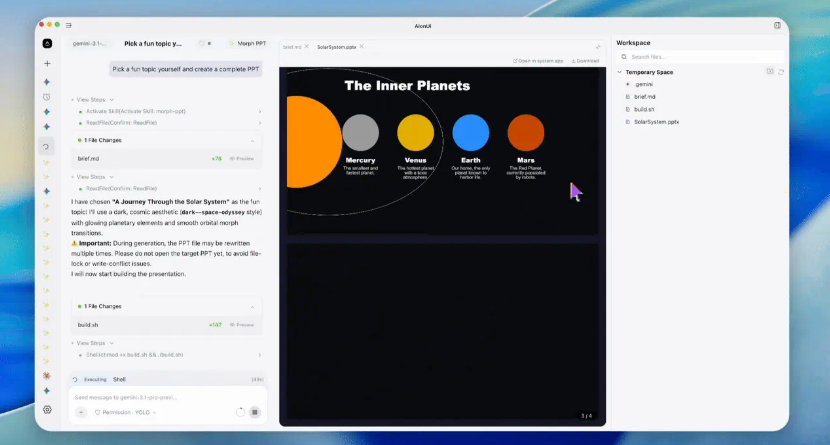
- Route A (GUI): Install AionUi, a desktop app. Describe what you want in natural language, and it uses OfficeCLI as the backend to generate the document.
- Route B (CLI): Download the binary for your platform from GitHub Releases, then run
officecli install. That’s it.
For Developers: 30 Seconds to Start
# Install (macOS / Linux)
curl -fsSL https://raw.githubusercontent.com/iOfficeAI/OfficeCLI/main/install.sh | bash

# Create an empty PPT
officecli create deck.pptx

# Start live preview (browser at http://localhost:26315)
officecli watch deck.pptx

# In another terminal, add a slide — browser updates instantly
officecli add deck.pptx / --type slide --prop title="Hello, World!"
Every add / set / remove command triggers instant browser refresh. For operations spanning 3+ steps, use the open / close persistent mode to reduce file I/O overhead:
officecli open report.docx    # Load into memory
officecli set report.docx ... # Zero file I/O
officecli close report.docx   # Save & release
Final Thoughts
What makes OfficeCLI truly interesting isn’t just its feature set — it’s the design principle the team established from day one:
Design for Agents, not for humans.
Almost every other tool assumes “a human will write code and call APIs.” OfficeCLI assumes “an Agent will send commands and read results.”
From now on, creating PowerPoint presentations doesn’t have to mean grinding through python-pptx anymore.

GitHub: https://github.com/iOfficeAI/OfficeCLI
Website: https://officecli.ai